Printers
Add a printer from this shop device. Browser-connected printers remain local to this device.
No browser printer connected.
Connect this shop to a local PortFactory Print Bridge for direct thermal printing.
Checking printers…
Install the PortFactory Print Bridge on the shop Windows, macOS, or Linux computer. The bridge connects securely to this POS and can print to USB, LAN, Wi-Fi, or system-installed thermal printers.
Barcode scanner
Use a USB/Bluetooth scanner, or use a phone’s back camera in a modern HTTPS browser.
No scanner input received yet.
⚡ Multi-Platform Silent Thermal Printing Hub
Step-by-step installers, 1-click launch shortcuts, and hardware guides for Windows, macOS, Android, and iOS / iPad.
1-Click Kiosk Desktop Setup
Creates an isolated, standalone PortFactory POS shortcut on your Desktop configured with automatic --kiosk-printing. No dialogs, no print popups!
- Click Download Kiosk Setup below.
- Double-click the downloaded
PortFactory-Kiosk-Setup.batfile. - A PortFactory POS shortcut appears on your Desktop.
- Open it and bill — receipts print instantly and silently!
PortFactory Print Bridge Agent
Runs a lightweight background service on http://127.0.0.1:8765 for raw binary ESC/POS thermal printing to any Windows driver.
- Download and install the Print Bridge Installer.
- The bridge runs in your Windows system tray.
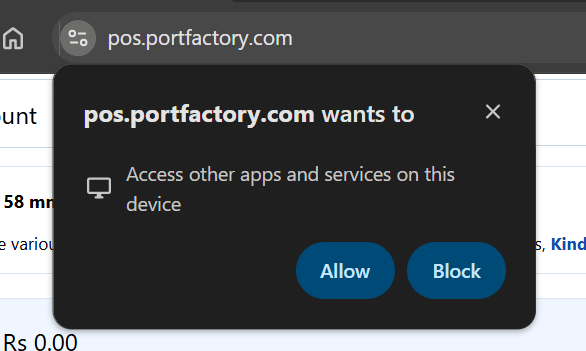
- Click Connect Printer in the Printers card above.
- Select your thermal printer (e.g.
POS80) from the list.
control printers → Right-click your thermal printer (e.g. POS-80, XP-80C, Epson TM-T88) → Click Set as Default Printer. Under Printer Properties → Device Settings, select paper size 80 x 297 mm or 58 x 210 mm.
1-Click macOS Kiosk Launcher
Generates an isolated macOS Desktop application launcher with --kiosk-printing enabled for Chrome and Edge.
- Click Download Mac Setup (.command) below.
- Double-click the downloaded file in your Downloads folder.
- *(If Mac shows a security prompt: Right-click file → select Open).*
- A PortFactory POS launcher is created on your Mac Desktop!
PortFactory Print Bridge for Mac
Runs a lightweight local service on http://127.0.0.1:8765 for raw binary CUPS thermal printing to any USB/Network printer on Mac.
- Download the macOS Print Bridge (.zip) below.
- Unzip and double-click
start_bridge.command. - Receipts print instantly and silently via Mac CUPS.
Direct Web Bluetooth Pairing
Print directly from Chrome on Android to any portable 58mm / 80mm Bluetooth thermal receipt printer with zero app downloads.
- Turn ON your Bluetooth thermal receipt printer.
- Click Pair Bluetooth Printer below.
- Select your printer from Chrome's device list and tap Pair.
- Receipts will stream directly over Bluetooth!
RawBT Print Service (USB / LAN)
For Android tablets connected via USB OTG cable or Wi-Fi LAN to heavy-duty thermal kitchen/counter printers.
- Install the free RawBT Print Service from Google Play Store.
- In RawBT, choose your connection type: USB OTG, Wi-Fi, or Bluetooth.
- Select Paper size: 80mm or 58mm.
- When printing from POS, RawBT handles silent thermal spooling!
Install to Android Home Screen
Turn PortFactory POS into a dedicated full-screen application on your Android phone or POS tablet.
- In Chrome on Android, tap the three dots ⋮ menu in top right.
- Tap Install app or Add to Home screen.
- Launch PortFactory POS from your home screen for distraction-free full-screen billing!
AirPrint Thermal Printing
Connect your iPad or iPhone to an AirPrint-compatible thermal printer (e.g. Epson TM-m30, Star Micronics AirPrint, Munbyn Wi-Fi).
- Connect iPad to the same Wi-Fi network as your AirPrint thermal printer.
- In Safari, click Generate Bill → select your AirPrint thermal printer once.
- Safari remembers the printer, allowing rapid 1-tap receipt printing on every bill!
Floor iPad → Cashier Counter Relay
Perfect for restaurants and multi-floor stores with waiter tablets.
- Waiters take table orders on iPads / iPhones.
- Saved orders instantly sync to the cloud database in real time.
- The main Cashier Counter PC (running Kiosk Mode) prints the bill or KOT automatically at the counter!
Add to iPad Home Screen
Run PortFactory POS as a native full-screen iPad app with no browser address bars.
- Open
https://pos.portfactory.comin Safari on iPad. - Tap the Share icon ⎋ at the top of Safari.
- Scroll down and tap Add to Home Screen → tap Add.
- Launch from iPad Home Screen for a dedicated POS experience!
Billing settings
Product prices already include GST. When enabled, Direct Billing and Table Billing will extract GST from the displayed price instead of adding GST on top.
PORTFACTORY POS APP
Your POS.
One tap away.
Install PortFactory POS on your phone, tablet, Windows PC, or Mac for quick everyday access.
Install PortFactory POS once for quick everyday access on this device.
Install PortFactory POS
Install PortFactory POS for quick one-tap access on this device.
Install PortFactory POS →Receipt Paper Size
Choose the receipt layout used by Direct Billing and Table Billing. This setting is shared across users of the selected business.
80 mm selected
Connection notes
Keyboard-mode scanners become Online after a scan. Camera barcode detection uses your browser’s built-in barcode support; current Chrome on Android is recommended. Camera access requires HTTPS (or localhost) and your permission.